
How to Find Your Minecraft Seed in Any World
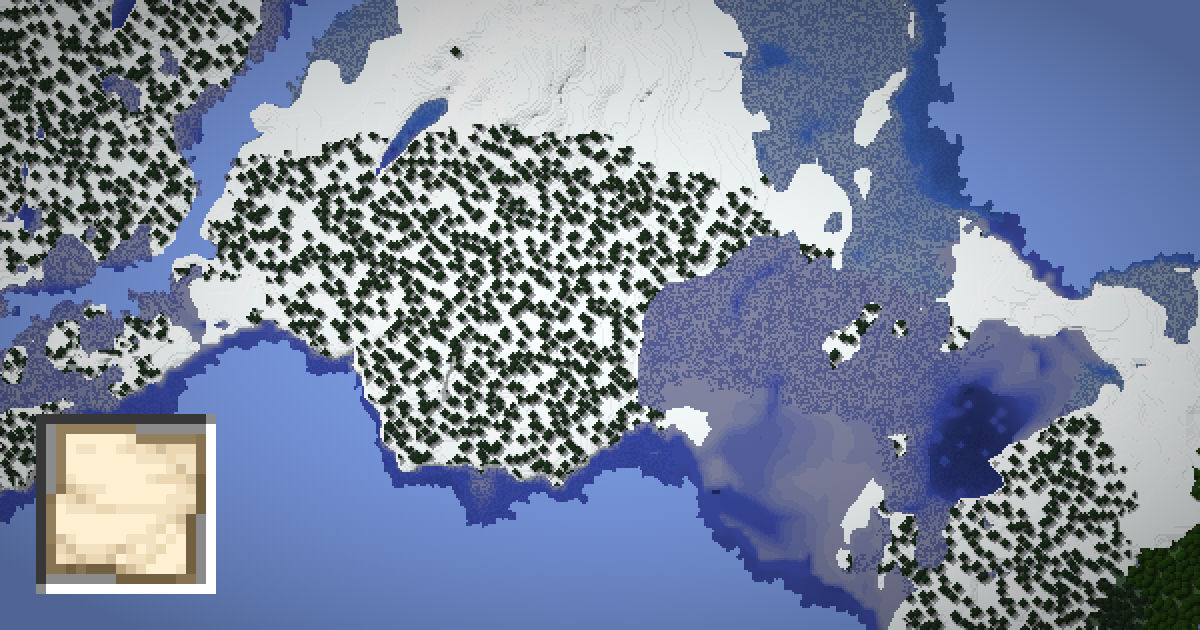
Every Minecraft world starts from a seed. It is a single number that decides where every mountain, river, village and stronghold ends up. If you know your seed, you can see your whole world on a map before you explore it. You can find structures, plan a base and share the world with friends.
This guide shows how to find your Minecraft seed in Java Edition, Bedrock Edition, on servers and Realms, and straight from the save file. Once you have it, paste it into the SeedMapView seed map to see your world in 3D.
Find your seed in Java Edition with /seed
The fastest way in Java Edition is the /seed command. Open chat with T, type /seed and press Enter. The game prints a line like "Seed: [-4172144997902289642]".
- Singleplayer: /seed works even when cheats are turned off. You do not need to open the world to LAN first.
- Copy it: click the number in chat. Java copies the seed to your clipboard, so you never have to retype a long number.
- Negative seeds: the minus sign is part of the seed. Keep it, or you will get a completely different world.
Java seeds are 64-bit numbers. That means they can be up to 19 digits long, plus an optional minus sign. If your seed looks short, that is fine too. Short seeds are perfectly valid.
Note that the debug screen (F3) no longer shows the seed. It used to in very old versions, but today /seed is the way to go.
Find your seed in Bedrock Edition
Bedrock Edition has no /seed command. Instead, the seed lives in the world settings.
- Pause the game, or go to the world list on the Play screen.
- Open Settings (or the pencil icon next to the world).
- Choose the Game tab.
- Scroll down to the World section. The seed is shown there.
This works on Windows, consoles, phones and tablets. Write the number down exactly, including any minus sign. Bedrock seeds are 32-bit numbers, so they are at most 10 digits long.
If you made the world from a template or downloaded map, the seed may still be shown, but the builds will not appear on a seed map. A seed map only shows what the world generator creates.
Find the seed on a server or Realm
On multiplayer servers, /seed needs operator permission. Normal players usually see "Unknown or incomplete command". Here are your options:
- Ask an admin. Anyone with op can run /seed and share the result.
- Check server.properties. If you run the server, open this file and look at level-seed. If the line is blank, the seed was random. In that case, use /seed in the console or read level.dat.
- Realms (Java): the Realm owner can download a backup of the world, open it in singleplayer and run /seed.
- Realms (Bedrock): the owner can download the world and check its settings in singleplayer.
Keep in mind that some public servers hide their seed on purpose. Some server software also lets admins change the seeds used for structures. In that case, terrain may match a seed map, but structure positions might not.
Read the seed from level.dat
Every world folder contains a file called level.dat. It stores world info, including the seed. This is the best option when you cannot open the game, or when you only have a backup.
| Edition | Where to find the world folder |
|---|---|
| Java (Windows) | %APPDATA%/.minecraft/saves/your world |
| Java (macOS) | ~/Library/Application Support/minecraft/saves/your world |
| Java (Linux) | ~/.minecraft/saves/your world |
| Bedrock | The minecraftWorlds folder, one sub-folder per world |
| Server | The world folder next to the server jar |
level.dat is a binary NBT file, so a text editor will not show the seed. You need a tool that reads NBT. In Java 1.16 and later, the seed sits under WorldGenSettings. In older Java versions and in Bedrock, it is stored as RandomSeed.
The easy route is to skip the NBT tools. SeedMapView can read level.dat directly. Load the file on the seed map and it fills in the seed for you.
What to do once you have your seed
With the seed in hand, open the SeedMapView map. Then:
- Pick your edition: Java or Bedrock.
- Pick the game version the world was created in. Java goes from 1.12 to 26.3, and Bedrock from 1.18 to 26.50.
- Paste the seed and the map loads instantly.
Now you can turn on structure icons, search biomes, or find spawn with the spawn finder. Click any spot to copy a /tp command and jump there in a creative copy of your world.
The version matters a lot. Terrain changed hugely in 1.18, and structures move between some updates. If you upgraded an old world, the chunks you already explored keep their old shape. Only new chunks use the new generator.
Common problems and fixes
- The map does not match my world. Check the edition and version first. This fixes most mismatches.
- My seed is a word. If you typed text when creating the world, the game turned it into a number. /seed shows that number. Use the number, or convert text with the text to seed tool.
- The terrain matches, but the structures do not. The world may come from a modded server or a datapack that changes generation.
- Old chunks look wrong. Areas explored before an update keep their old terrain. Compare newer areas instead.
- I see a seed of 0. Some tools show 0 when they cannot read the file. Try /seed in game to confirm.
Sharing and saving your seed
Once you have your seed, save it somewhere safe. A note on your phone or a text file next to your world backups is enough. If your world ever gets corrupted, the seed lets you rebuild the same landscape in a fresh world. Your builds will be gone, but every mountain, cave and structure will be back where it was.
Seeds are also great for sharing. If you find a world with a village at spawn or a huge mountain range, friends can play the same world by typing the seed into the Seed for the World Generator field in Java, or the Seed field in Bedrock, when they create a new world.
When you share a seed, always include three things:
- The full number, including any minus sign.
- The edition, Java or Bedrock.
- The game version, such as Java 1.21.4 or Bedrock 1.21.50.
Without the version, the other player may get different terrain or structures. Without the edition, they may see the right biomes but none of the same villages or temples. If you want ideas for your next world, browse the best seeds or search for one with exact features using the seed finder.
FAQ
How do I find my Minecraft seed without cheats?
In Java singleplayer, /seed works even with cheats off. In Bedrock, open the world settings, go to the Game tab and read the seed in the World section.
Can I find the seed of a server I do not own?
Only if an operator shares it or the server allows /seed for players. Many public servers hide their seed on purpose.
Where is the seed stored in the save file?
It is stored in level.dat inside the world folder. SeedMapView can read that file and fill in the seed for you.
Why does my seed have a minus sign?
Seeds can be negative numbers. The minus sign is part of the seed, so always keep it.
Does the seed change when I update Minecraft?
No, the seed stays the same. But new chunks may generate differently in a new version, so pick the right version on the map.