
Reading a Minecraft Seed Map: A Beginner Guide
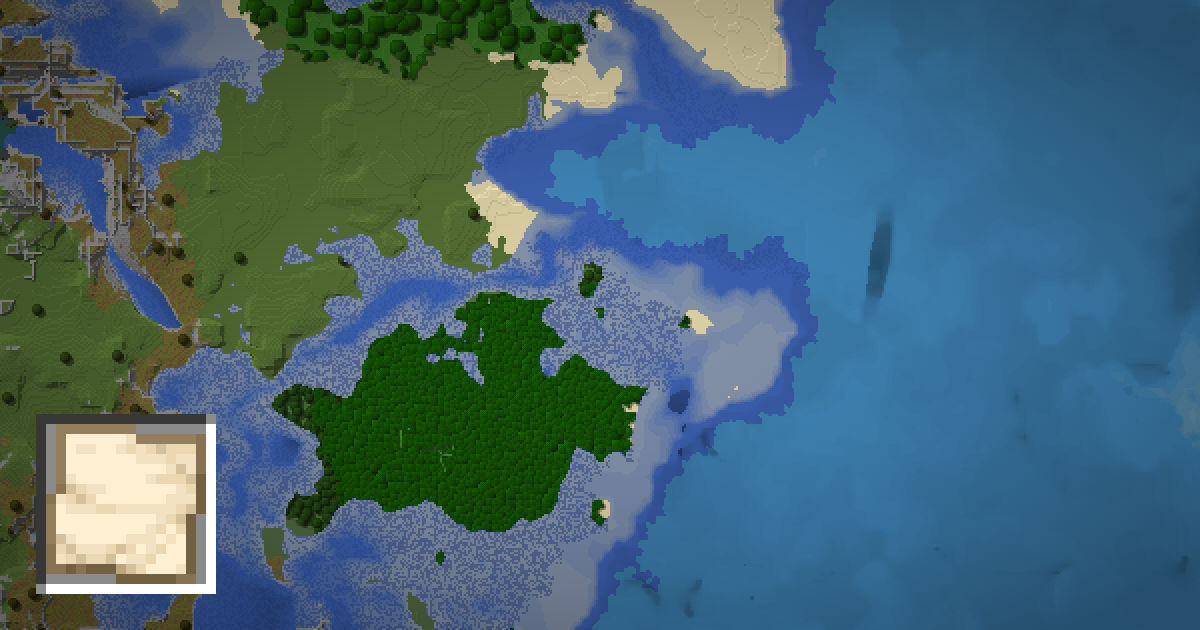
A seed map shows your whole Minecraft world from above, before you explore it. It is the fastest way to find biomes, structures and a good base spot. But the first time you open one, the colors, icons and numbers can feel like a lot.
This guide explains how to read a Minecraft seed map step by step. It covers coordinates, directions, biome colors, structure icons and depth. Follow along on the SeedMapView seed map with your own seed.
Set the seed, edition and version first
A seed map is only correct if it matches your world. Before reading anything, check three settings:
- Seed. Get it with /seed in Java or from world settings in Bedrock. See how to find your seed.
- Edition. Java and Bedrock share terrain since 1.18, but structures differ.
- Version. Generation changes between updates. Pick the version your world was created in, or the version your new chunks are generating in.
If the map does not match what you see in game, one of these three is almost always the cause. A quick test is to compare a landmark near spawn, like a coastline or a big mountain. If it lines up, the settings are right.
Coordinates and directions
Minecraft uses three coordinates. The map shows two of them, since it is a top-down view.
| Axis | Meaning | Direction |
|---|---|---|
| X | East and west | Positive X is east |
| Z | North and south | Positive Z is south |
| Y | Height | Higher Y is up |
The trick that confuses people is Z. On a seed map, north is at the top, so moving up the map means Z gets smaller. Negative Z is north.
To see your position in game, press F3 in Java. In Bedrock, turn on Show Coordinates in the world settings. Then compare your X and Z with the map. Hover over any point on the map to see its coordinates.
Biome colors
Each color on the map is a biome. The colors follow a common style used by most seed maps:
- Blues are oceans and rivers. Darker blue means deeper water.
- Greens are forests, plains and jungles. Dark forests are a deep green.
- Yellows and oranges are deserts, savannas and badlands.
- Whites and pale blues are snowy biomes and frozen peaks.
- Purple or magenta often marks mushroom fields. Pink marks a cherry grove.
Hover over a color to see the biome name. Biome borders on a seed map are accurate to a few blocks, so you can plan exactly where a biome starts.
Some biomes look alike at a glance. Plains and sunflower plains, or taiga and old growth taiga, use very similar colors. If the exact biome matters, for example when you want a specific wood type or animal, always hover to confirm the name before you travel.
Structure icons
Icons mark where structures generate. Common ones include villages, strongholds, temples, ocean monuments, woodland mansions, ancient cities and trial chambers. You can usually turn each type on or off to cut down on clutter.
A few things to keep in mind:
- Icons mark the structure start. Large structures like strongholds and ancient cities spread out from there.
- Underground structures do not show on the surface. Ancient cities, trial chambers and strongholds need digging.
- Some structures can fail to generate. In rare cases a structure is checked but the terrain does not allow it. When in doubt, check the spot in a creative copy of your world.
Each structure type also has its own page, such as the village finder, which lists the closest ones to spawn.
Chunks, regions and scale
Minecraft splits the world into chunks of 16 by 16 blocks. Many features depend on chunks. Slime chunks, structure spacing and loading all work chunk by chunk.
- A chunk's coordinates are the block coordinates divided by 16 and rounded down. Block X 100 is in chunk 6.
- A region file holds 32 by 32 chunks, or 512 by 512 blocks.
- As you zoom out, each pixel on the map covers more blocks. Zoom in for exact borders.
Use the chunk calculator to convert between block, chunk and region coordinates.
Depth, dimensions and the 3D view
The world is not flat, and a 2D map can hide a lot. Cave biomes like lush caves, dripstone caves and the deep dark sit underground. They may not show at the surface layer at all.
On SeedMapView you can switch to the 3D view to see terrain height, mountains and valleys. You can also switch dimension to the Nether or the End. Remember that Nether distances are 8 times shorter than in the Overworld. The nether portal calculator converts between the two.
When you find a spot you like, click it to copy a /tp command. In a creative test world, paste it into chat to jump right there.
Planning a trip with the map
Reading the map is only useful if you can act on it. Here is a simple routine for planning any trip:
- Find your position. Note your X and Z in game, then find that spot on the map.
- Pick a target. Hover over a structure or biome to see its coordinates.
- Work out the direction. If the target X is larger than yours, go east. If the target Z is larger, go south. Smaller Z means north.
- Check the distance. A quick estimate is the bigger of the two differences. Long trips are better through the Nether.
- Look at the route. Oceans, mountains and huge rivers can slow you down. A route along a coast or plains is often faster than a straight line.
In Java, the F3 screen also shows which way you are facing, such as "Facing: north (Towards negative Z)". Use that to stay on course.
The map is also great for picking a base spot. Look for a place with several biomes nearby, a village for trading, and water close by. A spot near the border of a few biomes gives you lots of wood types and animals within a short walk.
For tasks like finding the closest structure to spawn, use the dedicated pages. The spawn finder shows where your world spawn is, and each structure finder lists the nearest ones. They all use the same map, so what you learn here works everywhere on the site.
FAQ
Which way is north on a Minecraft seed map?
North is at the top of the map. In Minecraft, north is the negative Z direction, so Z gets smaller as you move up the map.
Why does the seed map not match my world?
Check the seed, edition and version. If your world was upgraded, old chunks keep their old terrain while new chunks use the new generator.
Are seed maps accurate?
Biomes and structure positions are calculated with the same rules the game uses, so they are very close. Rarely, a structure can fail to generate because of terrain.
What do the colors on a seed map mean?
Each color is a biome. Blues are water, greens are forests and plains, yellows are dry biomes and whites are snowy biomes. Hover to see the exact name.
Can a seed map show caves?
Cave biomes can be shown at different depths. Individual cave tunnels are best explored in game or in the 3D view.